
Galaxy A56 and A57 Users Can Now Share Files With iPhones: Here’s How
Sending a photo from an Android phone to an iPhone without a messaging app has always been frustrating. On two of Samsung’s mid-range phones, it just got easier.
By TechnoWorld360 Editorial TeamPublished
- Format
- Explainer
The short answer
Galaxy A56 and A57 users who have updated to One UI 9 will find a Quick Share option called ‘Share with Apple devices’. You can enable this in Settings > Connected devices > Quick Share. Make sure your iPhone is set to receive from Everyone. Although it isn’t mentioned in Samsung’s changelog, the feature is working.
Changes
You’ll understand how frustrating it is to be unable to share a photo from your Android phone to your iPhone without a messaging app. Samsung has been slowly adding features to overcome this issue and has now added it to the Galaxy A56 and A57.
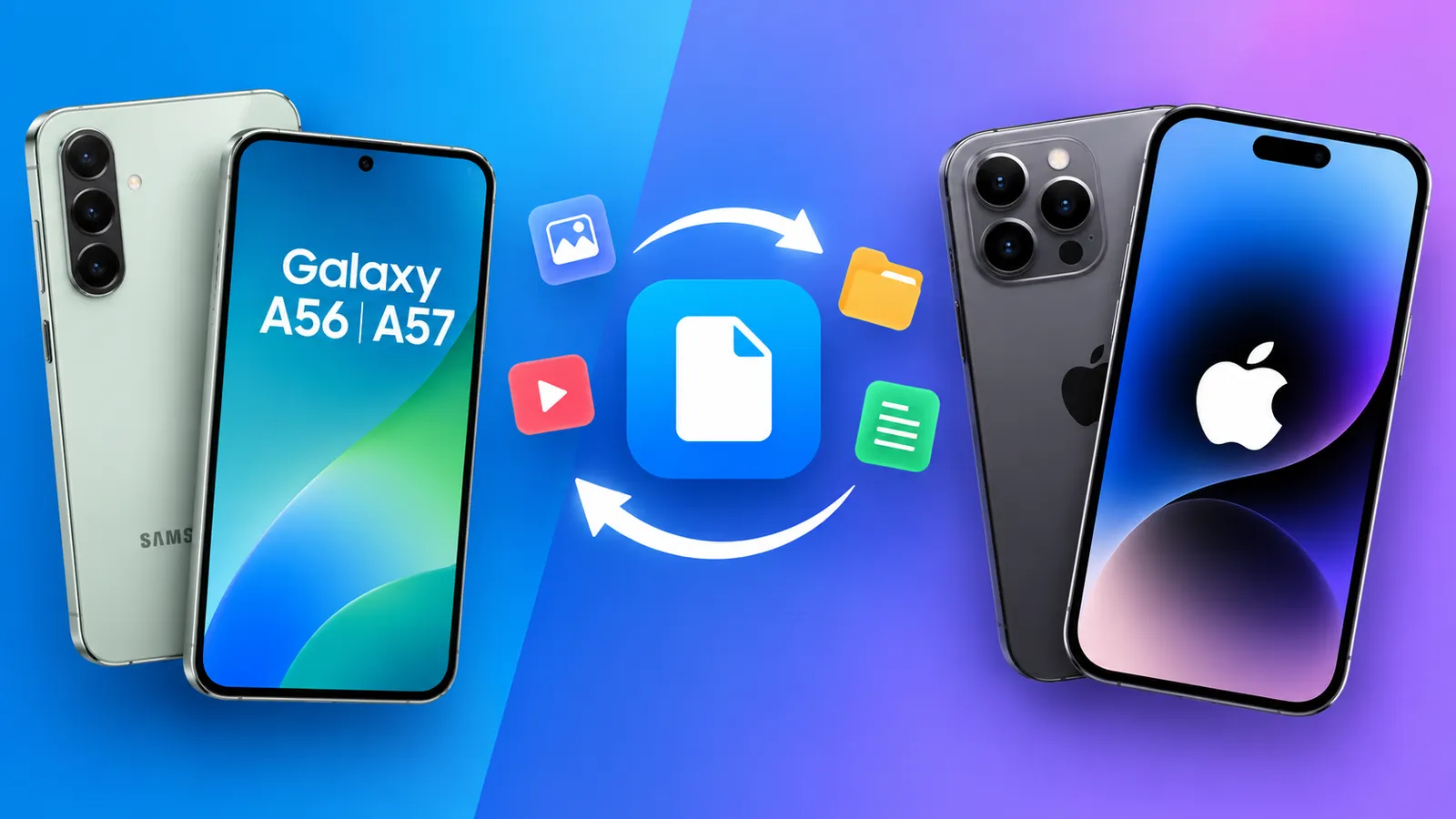
Galaxy A56 and A57 owners who have upgraded to One UI 9 will find that they can now share files with Apple devices using a new Quick Share option called ‘Share with Apple devices’. This means that no third-party app is needed. The option works with iPhones, iPads and Macs.
However, this isn’t mentioned in Samsung’s official One UI 9 changelog. Galaxy owners have confirmed this themselves. It has been confirmed on Samsung’s community forum and Reddit (as reported by netzwelt). So, it is a working feature but isn’t officially announced.
The Galaxy A57 was the first to receive One UI 9 and then the Galaxy A56 received the update around a week later (as reported by Born City).
How it came about
This isn’t a new feature but the latest addition in a slow push to create cross-compatibility between Android and Apple devices.
As reported by Born City, Google was the first brand to add this feature, with the Pixel 10, and Samsung followed. It was first added to the Galaxy S26 series but has since been rolled out to other devices, including the S25 FE and S24 FE (as reported by Gizchina). The S25 and S24 series have both received it but the S23 has missed out (as reported by netzwelt).
In fact, this is the first time it has been added to mid-range models. The Galaxy A56 and A57 are now the first models in the cheaper A range of Galaxy devices to have this new option. They received it when they upgraded to One UI 9, which is based on Android 17.
However, if you’re still running One UI 8.5, you won’t see this option as it wasn’t available (as reported by Born City).
How To Enable
Follow the steps below to enable this option. These steps were taken from Gizchina.
- Make sure your phone is running One UI 9. You can check by heading to Settings > Software update.
- Make sure Quick Share and other related components are updated in the Galaxy Store.
- Head to Settings > Connected devices > Quick Share. Toggle on ‘Share with Apple devices’.
- Make sure AirDrop on your iPhone is set to Everyone. Also make sure Quick Share on your Galaxy is set to Everyone.
- Select an image or file on your Galaxy. Tap the share button. Select Quick Share and then select your Apple device.
iPhone to Galaxy
When sending from your iPhone to your Galaxy, open Quick Share on your Galaxy and make sure it is visible to everyone. On your iPhone, select the file you want to share. Tap the share button. Select AirDrop and then select your Galaxy.
This could be particularly useful if you use your iPhone as your main phone but have a Galaxy A56 or A57 as your second phone (as reported by Teltarif). As you have two phones, you won’t have to worry about transferring images and files as much.
As with any new feature, always start with a small file. For example, just one image.
Troubleshooting
Check the following.
If you can’t see the option, this is likely down to your phone not being updated. You must be running One UI 9 and have the Quick Share app updated. Check if there are any updates for Quick Share in the Galaxy Store. One report mentions that you also need the correct version of Google Play services.
If you can’t see the other phone, make sure Bluetooth and Wi-Fi are turned on and that the devices are close to each other. Also make sure that both devices are set to receive from everyone. The ‘Everyone’ option on your iPhone will only last 10 minutes, so it may change while you’re playing around.
If you’re having trouble with transfers, try turning both devices’ screens on. Large files can take a while to transfer.
If none of these work, try restarting both devices and trying again. This is an unannounced feature, so you may have some quirks.
Security Tips
As you’re making your phone visible to everyone, even if it’s just for a short amount of time, use common sense. The iPhone only allows you to have Everyone for 10 minutes. Once you’ve finished using the feature, try switching both devices back to only showing contacts (as recommended by Gizchina). This is a good habit to get into.
Only accept files from people you know. If you’re in a busy area and something appears out of nowhere, reject the request.
Most reports are coming from owners. One report mentions that the owner couldn’t test the feature as they didn’t have an iPhone. Try testing it with a friend’s phone.
Supported Devices
Currently, only the Galaxy A56 and A57 are confirmed to work. Samsung has not officially released a list of supported devices. All of the information here has come from reports from owners.
The older models are not as clear. There are mixed reports for the Galaxy A55 and A54. One report on Reddit mentions that the Galaxy A55 does not include this feature in the beta version of One UI 9. We recommend only assuming that the A56 and A57 will work.
However, as One UI 9 is still being rolled out, more Galaxy A models could be added. If you do find that this feature works on your Galaxy, sharing a screenshot and model name will help the community know how far this has been rolled out (as reported by Gizchina).
How it compares to previous methods
Previously, you’d have to use a few methods to share files between your Android phone and iPhone. You can use a messaging app, however this often reduces the quality. You can upload to a cloud drive and share the link, however this takes longer and requires you to be connected to the internet. Alternatively, you can email the files to yourself. This can be cumbersome.
Using Quick Share and AirDrop means there is no need to use an app. The files transfer directly between the two devices. This makes it faster to share larger images, videos and documents. We haven’t timed the transfer ourselves so we can’t guarantee how fast it will be. However, it’s clearly easier.
Compared to other brands: as reported by Gizchina, Honor, OPPO and Xiaomi offer iPhone sharing. However, this requires a separate app. Samsung’s doesn’t.
Why it’s useful
Most households and groups of friends will have a mix of Android phones and iPhones. Being able to send holiday photos or a PDF without having to compress it in a chat app is a small thing but will save you some frustration.
Samsung has done a great job adding this to a cheaper phone. This will make the A series more appealing to those who may be reluctant to switch out of an Apple-dominated social group. This is a nice touch as Samsung is apparently reducing Galaxy A production to compensate for increased memory costs (as reported separately).
As we haven’t tested this on a Galaxy A56 or A57, this guide is based on published reports and owner confirmation. If you try it, let us know how you got on and we’ll update the article.
What we don’t know
Samsung hasn’t officially confirmed this feature. We don’t know why it hasn’t been mentioned in the One UI 9 changelog. We don’t know which other Galaxy A models will have this feature or when. As it’s coming from owners, there may be slight differences between devices and software versions.
Also, early leaks for One UI 10 (which is based on Android 18) are already popping up. As usual, it won’t be available until next year at the earliest (as reported by netzwelt).
We’ll update this article when Samsung says more.
References
Gizchina, Galaxy A56 and A57 owners can now send files to iPhones: https://www.gizchina.com/samsung/galaxy-a56-and-a57-owners-can-now-send-files-to-iphones-and-heres-how-to-turn-it-on GizGuide, Galaxy A56/A57 users report AirDrop compatibility after One UI 9.0: https://www.gizguide.com/2026/10/samsung-galaxy-a56-a57-air-drop.html netzwelt, Quick Share with AirDrop on Galaxy mid-range devices: https://www.netzwelt.de/news/259833-quick-share-airdrop-galaxy-mittelklasse-ans-iphone-funken.html Born City, Galaxy A56 with One UI 9: https://borncity.com/news/galaxy-a56-mit-one-ui-9-quick-share-tauscht-dateien-mit-apple-geraeten-aus/ Teltarif, Galaxy A56/A57 AirDrop: https://www.teltarif.de/en/galaxy-a56-a57-airdrop-quick-share/news/106980.html Teknoblog, Galaxy A57 and A56 users start seeing the AirDrop option (Google Play services note): https://www.teknoblog.com/galaxy-a57-a56-airdrop-one-ui-9/
Questions people ask
Can the Galaxy A57 share files with an iPhone?
Yes. Galaxy A56 and A57 owners can share files with an iPhone after upgrading to One UI 9. Quick Share adds an option to share with Apple devices.
How do I enable AirDrop sharing with my Galaxy A56 or A57?
Upgrade to One UI 9 and update Quick Share in the Galaxy Store. Head to Settings > Connected devices > Quick Share and toggle on ‘Share with Apple devices’. Make sure your iPhone is set to Everyone.
Is this officially supported by Samsung on the Galaxy A series?
No. This feature isn’t mentioned in the One UI 9 changelog and Samsung has not released a list of supported devices. It is based on owner reports.
Do I need an app to share files between a Galaxy and an iPhone?
No. This is a built-in feature of Quick Share. The iPhone uses the standard AirDrop.
Why can’t I see the ‘Share with Apple devices’ option?
Make sure you’re running One UI 9. The option isn’t available on One UI 8.5. Also make sure Quick Share is updated in the Galaxy Store. Other Galaxy A models may not be supported.